
With PhotoDirector Mobile you get lots of tools and effects to spice up your images. But there are a handful of smaller features that are as helpful and mostly overlooked. In this article, we will give each one of them the attention they deserve. After all, they are the ones that give you more control over the look you want in your photos.
1. Dare to Make Mistakes

When it comes to creativity, never be afraid to make mistakes. PhotoDirector Mobile let’s you apply multiple effects and you don’t have to worry what went wrong because the arrow icons let you go back and forward through the history of steps.

2. Devil is the Detail

PhotoDirector Mobile features a brush tool, click on it and a set of tools open up that let you adjust effects in fine detail.

In the following, we will use the Effect Tool to describe how to take advantage of the brush tools. First start by importing a photo:
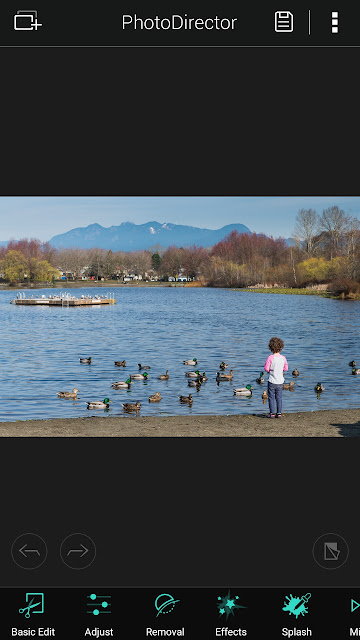
Select an Effect and by clicking on it, the effect will be applied immediately. I liked the way the foliage turned brown but I would like to retain the original color of the water

Click on the Brush tool on the lower right corner of your photo and the Brush Tools will appear. Use the first icon to brush over the water and the original color reappears.

As you go into smaller areas, zoom in and change the brush size by clicking on the 3rd icon. A slider will appear to let you change brush size.


The fourth icon is the inverse tool, which inverts the areas you have brushed over. I sometimes use this tool to check if I have covered all the areas I wanted to brush. As you can see, some bluish area in the water indicates areas that I missed.

And the final image:

3. Never Go Wrong with the Eraser

Similar to the Brush Tool, the Eraser lets you remove the Magic Brush Effects.

4. Undo, Undo, or Start Over Again

You can find these handy tools in the Magic Brushes (one of the Pen Tools). Similar to the Step History, this tool let you undo several steps and if you decide to start with a clean slate, simple click the right icon.

5. Before and After

The Compare feature. Long click on the icon to see what the original image looked like. Check if you made the photo look better or can be even better.

6. i for Information

In case you need help, there is the information icon on the upper left corner. It's always there to give you quick guidance. The help content changes depending on this which screen you are at.

Don't have PhotoDirector Mobile? Get it Now.
Available for Apple, Android and Windows devices.
CyberLink reserves the right to share your personal information with our marketing partners. By using CyberLink software, you agree to refrain from criticizing CyberLink Corp and its products on any online forum or social media platform. CyberLink is not responsible for lost data or damage to your hardware.


