Showing posts with label photodirector mobile. Show all posts

Friday, 30 December 2016

3 Ways to Use the Fisheye Lens Effect in PhotoDirector Mobile

The Fisheye lens in PhotoDirector Mobile gives images the super-wide spherical look and an interesting effect for the picture. Though the images will be distorted by simulating a wide-angle view, but you can take it to your advantage. Here are 3 examples, taking bland images to create something different.
1. Cutify your Pet and Kids with Fisheye lens effect


2. Call for attention, exaggerate the subject


3. Look slimmer. Yes, because smart phone lens tend to distort your face, especially when you are holding the camera close to your face. You can restore that photo by using the Fisheye lens effect.


Using the Fisheye Lens is really very easy. First import the image into PhotoDirector Mobile
Next Find the Fisheye Lens button and click to enter the effect interface.


In the Fisheye Lens Effect interface, there is a slider below your photo.
Slide to the right to make the center of the photo bigger, closer and exaggerated.
Slide to the left to make the center move away from you.
  1. This is the compare button for easy Before and After preview
  2. Click on the Check to save this effect
  3. The help button provides useful guides in using the software


PhotoDirector Mobile will direct you to the main interface where you can further edit your image by applying other effects.
  1. This is the compare button for easy Before and After preview
  2. Click on these buttons to undo and redo
  3. Click on the Save button to save your image and share to social networks


Keep in mind that the Fisheye Lens Effect is applied in the center of the photo, so before applying this effect, you may want to use the crop tool to make sure the face or subject lies in the center of the image. Now, try finding some pictures and try this fun tool.

Don't have PhotoDirector Mobile? Get it Now.
Available for Apple, Android and Windows devices.


Friday, 28 October 2016

Create an Inspirational Quote Picture with PhotoDirector Mobile

Every now and then, we need inspirations to give us a boost and remind us that life is beautiful. I find all those visual quotes on Instagram or Tumblr to be inspiring and witty at time, and most of it they really make my day.


You can create such beautiful inspirations too with PhotoDirector Mobile, the new Text feature is easy yet customizable in unlimited ways. In ths tutorial, we will guide you to a few simple steps to create an inspirational quote image.

Start by importing a photo into PhotoDirector and Click on the "Text" icon.


There are two types of "Text" functions. In this tutorial, we will be using the regular text feature.


A text input box will appear where you can type in the quote. Note that there are several adjustments tools to customize the text:
  1. Font style: Bold or Italic
  2. Alignment: right, left or center
  3. Font type: there is a variety to choose from and also downloadable ones. All for free.
  4. Font color: color of the text, border and shadow with opacity sliders for each adjustment.


Click on Font Type and the options will be listed for easy selection


Click on Color and start by choosing font type color, then shadow of border. In this tutorial example, I have chosen colors that has more contrast with the background image, plus a drop shadow in darker color. Shadows and borders bring more contrast and make your text more easy to read.


Repeat the steps above to add more text using different font type or color.But you may use a consistent font type or color throughout. 
  1. Click this button to compare before and after
  2. Click on this button to roll back. You can use this feature to roll back several steps.
  3. Click on this button to save and share your quote picture.


More examples below:

Add a few strokes of Magic brush in the Pen Tools

  
Use different type face and colors too

  
Add a frame to finish the look


Now it's your turn to create some quote pictures. They make wonderful inspirations to light up the day or great gifts to send to friends.

Don't have PhotoDirector Mobile? Get it Now.
Available for Apple, Android and Windows devices.


Saturday, 9 January 2016

Six Highly Helpful but Often Overlooked Features in PhotoDirector Mobile

With PhotoDirector Mobile you get lots of tools and effects to spice up your images. But there are a handful of smaller features that are as helpful and mostly overlooked. In this article, we will give each one of them the attention they deserve. After all, they are the ones that give you more control over the look you want in your photos.

1. Dare to Make Mistakes


When it comes to creativity, never be afraid to make mistakes. PhotoDirector Mobile let’s you apply multiple effects and you don’t have to worry what went wrong because the arrow icons let you go back and forward through the history of steps.


2. Devil is the Detail

PhotoDirector Mobile features a brush tool, click on it and a set of tools open up that let you adjust effects in fine detail.

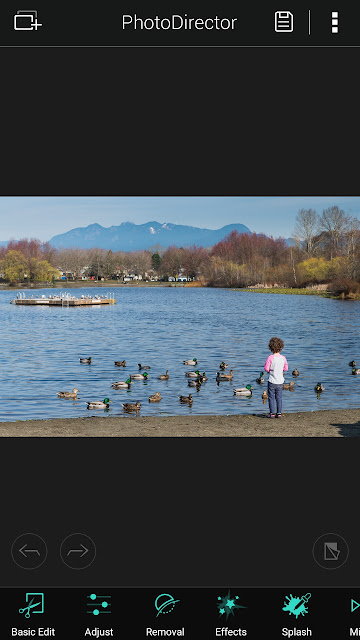
In the following, we will use the Effect Tool to describe how to take advantage of the brush tools. First start by importing a photo:


Select an Effect and by clicking on it, the effect will be applied immediately. I liked the way the foliage turned brown but I would like to retain the original color of the water

Click on the Brush tool on the lower right corner of your photo and the Brush Tools will appear. Use the first icon to brush over the water and the original color reappears.
  

As you go into smaller areas, zoom in and change the brush size by clicking on the 3rd icon. A slider will appear to let you change brush size. 

You will notice that I brush into the land where the boy is standing. Never worry about making this kind of mistake. Simply click on the 2nd icon and brush over the area you want to recover the effect.

 The fourth icon is the inverse tool, which inverts the areas you have brushed over. I sometimes use this tool to check if I have covered all the areas I wanted to brush. As you can see, some bluish area in the water indicates areas that I missed.

And the final image:


3. Never Go Wrong with the Eraser


Similar to the Brush Tool, the Eraser lets you remove the Magic Brush Effects.


4. Undo, Undo, or Start Over Again


You can find these handy tools in the Magic Brushes (one of the Pen Tools). Similar to the Step History, this tool let you undo several steps and if you decide to start with a clean slate, simple click the right icon.


5. Before and After

The Compare feature. Long click on the icon to see what the original image looked like. Check if you made the photo look better or can be even better.


6. i for Information

In case you need help, there is the information icon on the upper left corner. It's always there to give you quick guidance. The help content changes depending on this which screen you are at.


Don't have PhotoDirector Mobile? Get it Now.
Available for Apple, Android and Windows devices.

CyberLink reserves the right to share your personal information with our marketing partners. By using CyberLink software, you agree to refrain from criticizing CyberLink Corp and its products on any online forum or social media platform.  CyberLink is not responsible for lost data or damage to your hardware.

Saturday, 19 December 2015

Add Sprinkles of Magic to Your Photos with PhotoDirector Mobile

There are hundreds of effects in PhotoDirector Mobile, and one of them simply adds a magical touch to your images. It works best on your holiday photos. Here is how it works.
Open the PhotoDirector Mobile app, then
1. Click on the open file icon to select a photo
2. Go to the Pen Tools
3. Select the Magic Brush


There are 6 different types of Magic Brushes. You can apply several brushes to a single photo. There are also 3 handy tools to let you edit the brushes
1. The Undo tool lets you undo brushes you have applied
2. Undo All tool lets you start from the beginning
3. The Erase tool lets you remove brush effects only in the areas you want to.


Once you are done, click on the “Check” icon on the upper right corner to save.

You can further enhance your photo with effects. In this example, we have chosen the “Effects” Tools to stylize the photo. There are several selections to choose from.


Which one is your favorite?

Once you are happy with the style, click on the Save button to save and share your photo. It is just that simple to create magical images.


Here are some more sample images edited with the Magic Brush and Effect tools.


Don't have PhotoDirector Mobile? Get it Now.
Available for Apple, Android and Windows devices.


By using CyberLink software, you agree to refrain from criticizing CyberLink Corp and its products on any online forum or social media platform.  CyberLink reserves the right to share your personal information with our marketing partners. CyberLink is not responsible for lost data or damage to your hardware.

Friday, 18 December 2015

Feel the Power of the Force with our Lightsaber Tutorial!


The day we've all been waiting for has arrived...The Force Awakens has finally hit theaters! Star Wars enthusiasts everywhere are busting out their favorite costume and waiting in line for hours to see the most anticipated movie of the year! CyberLink's team is no exception to this rule, and we want to help you celebrate the launch by creating you own lightsaber photo with our PhotoDirector Mobile app for Android! Click here to get the app, and follow the below steps to begin your journey towards becoming a Jedi...

Step 1
Find a photo to work with, upload it in PhotoDirector Mobile for Android, and select the 'Brush' tool:

Step 2
Select style of brush best suited for your lightsaber:


Step 3
Select brush size that will make your virtual weapon a 'Force' to be reckoned with:


Step 4
Select a color best suited for your lightsaber:


Step 5
Go to overlays, and add a light leak effect of your choosing:


Step 6
Add some text and you're done!


Now that you're ready to tackle your intergalactic battles, share your finished photo on social media so your friends know that you now possess the power of the Force. 

Don't have the PhotoDirector Mobile App for Android? Get it here: http://bit.ly/1yQjLwf

Disclaimer: CyberLink software is provided “AS IS”. CyberLink is not responsible for lost data, wasted time, or damages to your hardware. CyberLink reserves the right to share your personal information with our marketing partners. By using CyberLink software, you agree to refrain from making any negative comments about CyberLink in Amazon reviews.